# Python on ### Microcontrollers \ \ An introduction to [Micropython](https://micropython.org) on ESP32 / ESP8266 and RP2xxx --- ## Why? - Easy<!-- .element: class="fragment" data-fragment-index="1" --> - Fun<!-- .element: class="fragment" data-fragment-index="2" --> - Favorite language<!-- .element: class="fragment" data-fragment-index="3" --> --- ## OK, but how? ---- ### Thonny The easy way (OOTB) 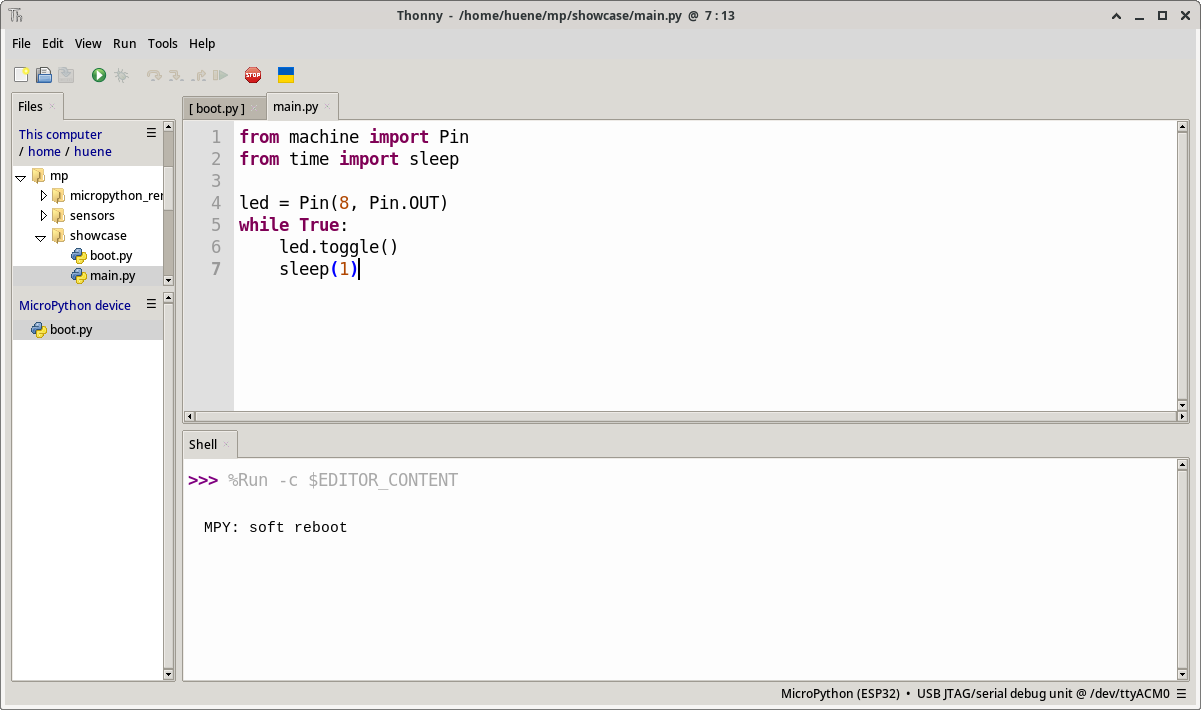 ---- ### PyCharm The familiar(?) way (Plugin required) 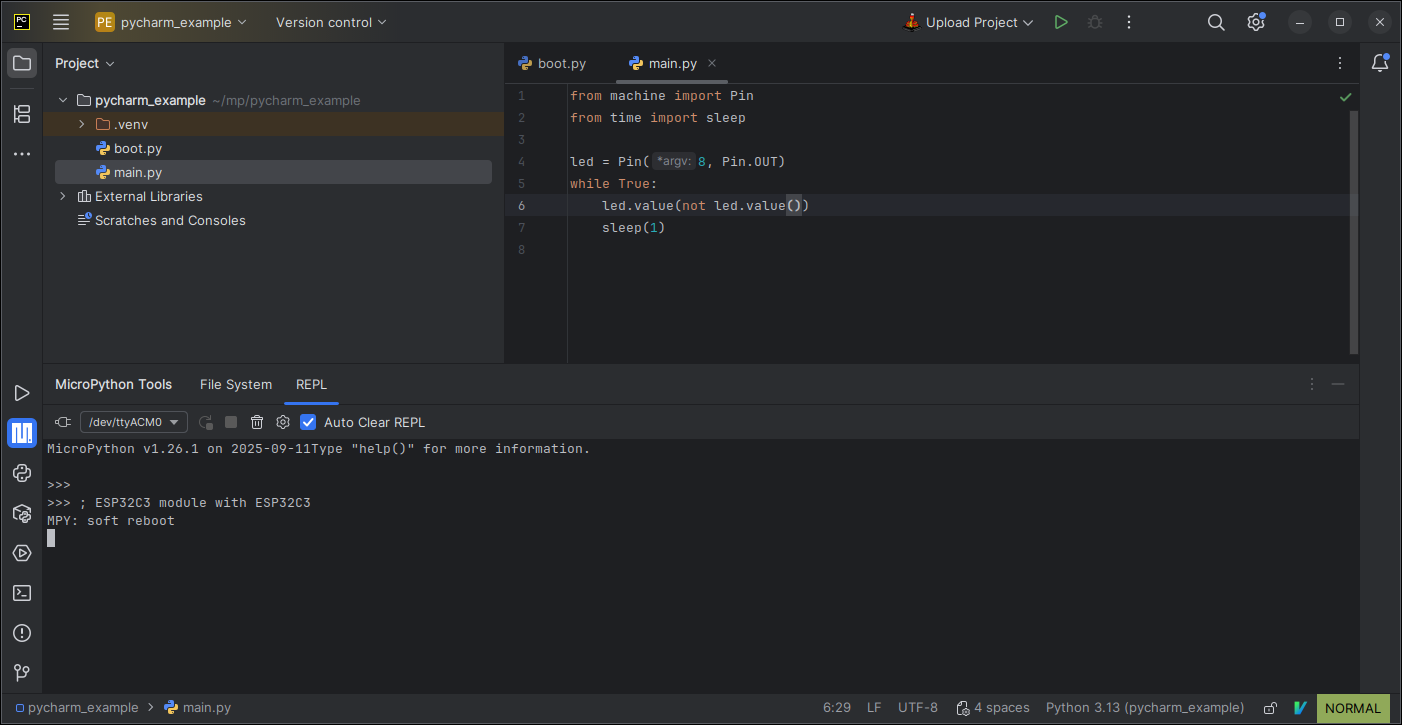 ---- ### Terminal The hard way - esptool (Espressif SoC only - ESP32, ESP8266) - flash the firmware - for Linux (repos, manual install), MacOS, Windows - also available for pip / uv / ... ```bash # Depending on installation method esptool esptool.py python -m esptool ``` ---- ### Terminal ```bash # gathering info esptool --port /dev/ttyACM0 chip-id esptool --port /dev/ttyACM0 flash-id # backup esptool --port /dev/ttyACM0 read-flash 0x00000 0x400000 backup.bin # write operations esptool --port /dev/ttyACM0 erase-flash esptool --chip esp32 --port /dev/ttyACM0 --baud 460800 write-flash -z 0x1000 firmware.bin esptool --port /dev/ttyACM0 --baud 460800 write-flash 0 ESP32_GENERIC_C3-20250911-v1.26.1.bin ``` Older syntax with "_" instead of "-" for commands, e.g. "write_flash" is deprecated ---- ### Terminal - [mpremote](https://docs.micropython.org/en/latest/reference/mpremote.html) - file transfer, REPL, etc - [package installation](https://github.com/micropython/micropython-lib) via "mip" - in some Linux repos - available for pip / uv / ... - implicitly auto connects if necessary - defaults to REPL (exit with Ctrl+X) - multiple commands can be queued ```bash mpremote # auto connects to first device, starts REPL mpremote a0 # alias for mpremote connect /dev/ttyACM0 mpremote soft-reset repl # performs soft-reset, then enters REPL mpremote cp main.py :main.py # copies main.py to device mpremote mip install datetime # install datetime lib from micropython-lib repo mpremote df reset # lists filesystem usage, performs hard-reset mpremote edit main.py # copy file to $TMPDIR, edit, copy to board mpremote mount . # mounts . to /remote on board, sets working dir mpremote mip install github:brainelectronics/micropython-i2c-lcd ``` <!-- .element: class="stretch" --> ---- ### Web based IDEs - [ViperIDE](https://viper-ide.org/) (can run offline, look & feel similar to Thonny) - [Arduino Lab for MicroPython](https://lab-micropython.arduino.cc/) (requires free account) 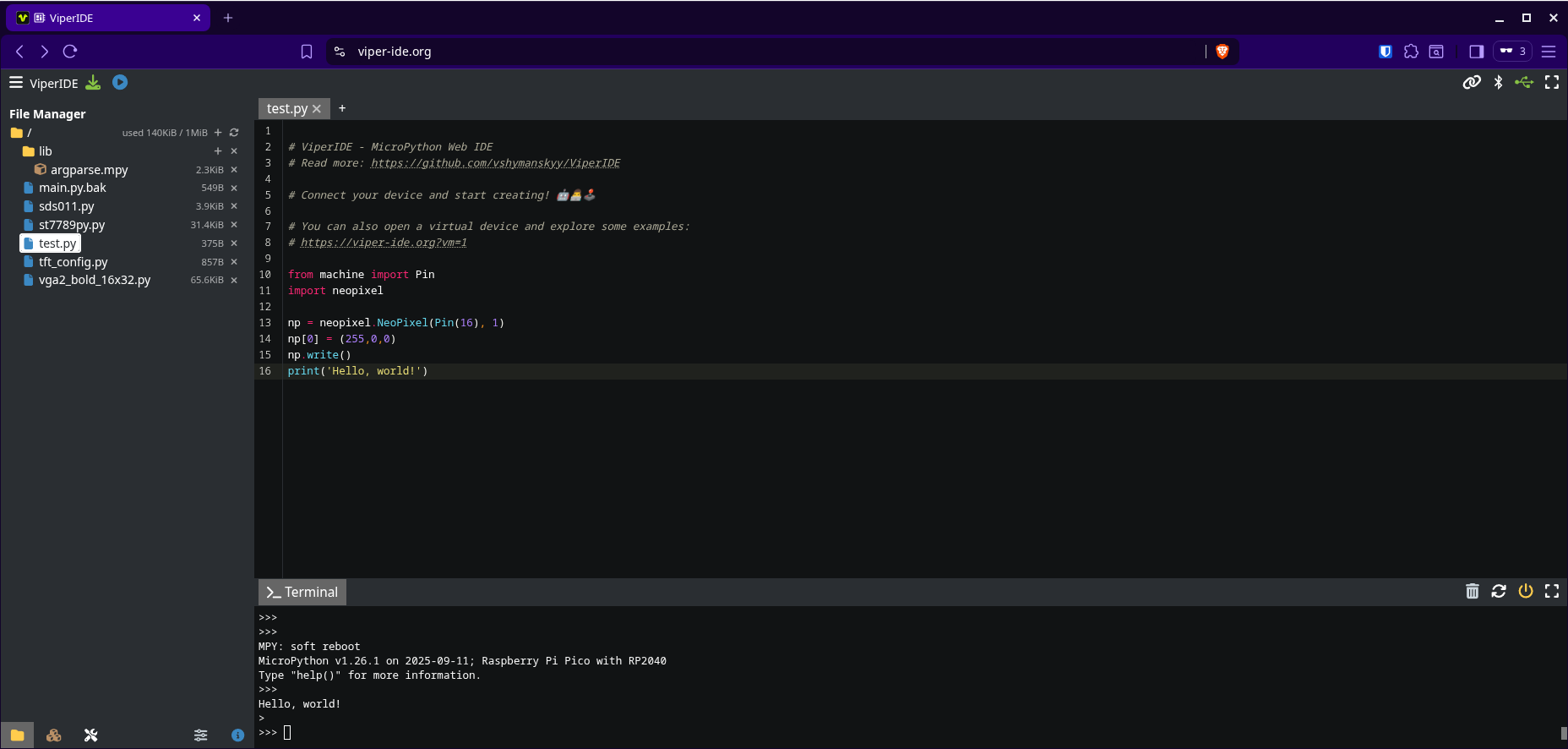 ---- ### Other IDEs Stumbled upon those by chance, haven't used them (for MicroPython) - Eclipse + PyDev Plugin - VSCode + Plugin - PyMakr by [pycom.io](https://docs.pycom.io/gettingstarted/software/vscode/) (requires NodeJS) - Arduino Lab for MicroPython - MPY-Jama (ESP32 only) - uPyCraft IDE - microIDE - Mu Editor - probably more ... --- ### Firmware Installation for Espressif SoC (ESP32, ESP8266) using Thonny - Run -> Configure Interpreter -> Install or update MicroPython (esptool) - Select Port (e.g. /dev/ttyACM0) - Select Family (e.g. ESP32-C3) and variant (e.g. Espressif ESP32-C3) - Select version (e.g. 1.26.1) - Install! ---- 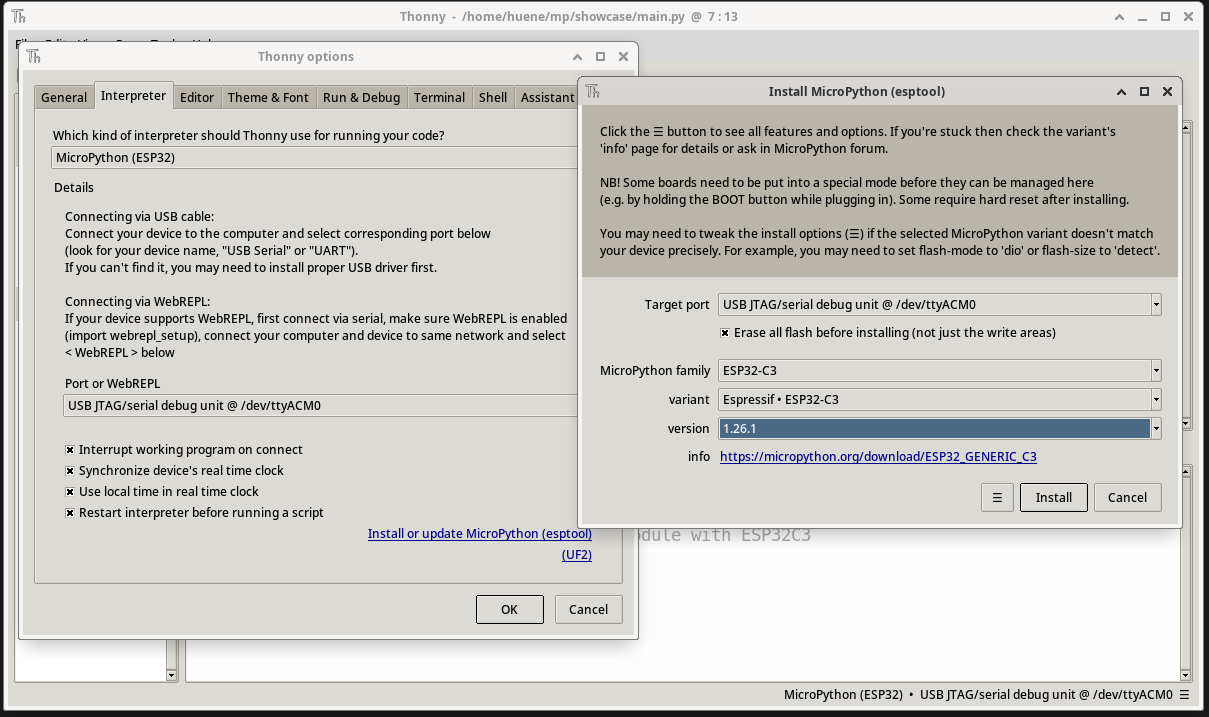 ---- ### Firmware Installation for RP2xxx (Raspberry Pi Pico) no extra software needed - Hold BOOTSEL while power on (plug in) - board presents as mass storage - copy firmware (.uf2) to board - automatically resets and installs nice and easy ---- ### Firmware Installation Or use Thonny: Run -> Configure Interpreter -> (UF2)  --- ### Development - Use your favorite IDE / editor - Test and debug interactively with REPL - boot.py is executed on every start (including wake from deep sleep) - handy for connecting to wifi, for example - if available - ✅ ESP32 / ESP8266 (Espressif, 2.4G only) - ❌ RP2040 / RP2350 (Raspberry Pi Pico) ---- ### Development - main.py is executed afterwards - should contain the main program loop - additional files / directories can be used for better structure - import as usual - separate libs / drivers, classes, etc. from your main code - Run code directly from the IDE or upload it and restart the microcontroller - Install packages with [mip](https://docs.micropython.org/en/latest/reference/packages.html) or just copy them onto the file system - by default as precompiled bytecode (.mpy) - [mpy-cross](https://pypi.org/project/mpy-cross/) as cross-compiler to create .mpy - available for uv / pip / ... --- ### What can it do? Not much on it's own But there are lots of available sensors, actors, ... - Neopixel - weather / environment - displays / lights - relais - sound - acceleration sensors - remote control (433 MHz) - touch sensors - ... ---- ###### Integrated protocols & peripherals variants differ for specific boards - SPI - I2C - UART - I2S - ADC - DAC - GPIO - TWAI - PWM ---- There are countless projects on the internet Common examples include: - weather station - internet radio - CO2 sensor - programmable key(board)s <br/> <br/> #### The sky is the limit ---- Some examples I have built: - CO2 sensor + green/yellow/red LED for air quality - dust particle sensor (close windows when neighbors are smoking) - actually also includes temperature / humidity / air pressure - play random MP3 files (microSD card) on speaker whenever a magnet is close - battery powered countdown timer using LEDs - Neopixel simulating progress bar - timer to automatically turn off magnetic stirrer - Display with text configurable via HTTP --- ### Pitfalls - not all Python3 libs / functions / features available (no datetime, for example) - due to size / computing power limitations - most common ones included - epoch starts at 2000-01-01 instead of 1970 - no internal RTC anyway, external modules exist - deep sleep may clear memory / state, resulting in a reset upon wake - depends on board specifics - useful for battery powered projects - 2.4G wifi only (if any) ---- ### Pitfalls - documentation for boards / components can be hard to find and/or unclear - pin numbers can be confusing - correct pinout is crucial for device communication - research before buying - check for available drivers (or write your own?) - Some pins not connected / not usable ----  - machine.Pin(8) refers to GP8 (Pin 12) not Pin 8 (GP4)<!-- .element: class="fragment" data-fragment-index="1" --> - Pins 15/16 (GP18/19) are reserved for the debugger and cannot be used as GPIO unless you compile custom micropython firmware with the correct flags<!-- .element: class="fragment" data-fragment-index="1" --> --- ### Notes on power - Easy to power via battery (LiPo, power bank) - Boards mostly run on 3.3V, accepting a broader voltage input range on the **Vin / 5V Pin** - Caution! Overvoltage on the 3.3V Pin will likely __destroy__ your board - specifics depend on the actual board, see docs - 3.7V LiPo (single cell) / 5V USB usually safe ---- ### Notes on power - Do not power from multiple sources simultaneously! - Disconnect other power source before connecting USB (e.g. for programming / debugging) - Usually provides 5V and 3.3V for peripherals - if powered via USB or 5V/Vin Pin, not via 3.3V - I advise against using 3.3V for power input in general ---- ### Other notes - Some boards have integrated LED(s) / Neopixel - MicroPython supports various architectures like ARM, RISC-V, Xtensa, x86(_64), ... - there are boards with ARM + RISC processors - CircuitPython is a fork by Adafruit - ESP SoC also have Wifi & Bluetooth on board - Variants of ESP with u.FL socket for external antenna - Micro USB still common - Libs often prefixed with 'u', e.g. 'utime' - conveniently 'import time' works as well ---- ### Example boards  Wemos D1 Mini (ESP8266), DFRobot FireBeetle ESP32, Waveshare ESP32-S3 Zero ESP32-C3 Zero / ESP32-C3 Super Mini, Raspberry Pi Pico, Waveshare RP2040-Zero, Seeed XIAO RP2040 --- ### Optional equipment Nice to have: - Breadboard - Jump wires - Resistors - LEDs - Switches - 5V Power supply --- ### Example code Keep in mind that I'm not a fulltime developer, and these are just hobby projects ---- ```Python[] # The 'Hello, world' equivalent for microcontrollers from machine import Pin from time import sleep led = Pin(2, Pin.OUT) while True: # led.value(not led.value()) led.toggle() sleep(1) ``` ---- ```Python[] from machine import Pin from time import sleep from random import randint from dfplayer import DFPlayer df = DFPlayer(0,16,17) trigger = Pin(18,Pin.IN, Pin.PULL_UP) #wait some time till the DFPlayer is ready sleep(2) #set the volume (0-30). DFPlayer doesn't remember the setting df.volume(15) sleep(1) #play file ./01/001.mp3 #df.play(1,1) count = df.get_files_in_folder(1) while(True): sleep(0.2) if(trigger.value()): df.play(1,randint(0,count)+1) while(df.is_playing()): sleep(1) ``` <!-- .element: class="stretch" --> ---- ```Python[] from machine import Pin from time import sleep speed = 0.5 interval_green = 40 interval = 30 green = (8,6,3,2,1,0) yellow = (14,15,26,27) red = (28,29) def blink(pin, speed, count): led = Pin(pin, Pin.OUT) for i in range(count): led.toggle() sleep(speed) def led_on(pin): led = Pin(pin, Pin.OUT) led.on() def led_off(pin): led = Pin(pin, Pin.OUT) led.off() for i in green + yellow + red: led_on(i) for i in green: blink(i,speed,interval_green/speed) led_off(i) for i in yellow + red: blink(i,speed,interval/speed) led_off(i) while(True): for i in green + yellow + red: led = Pin(i, Pin.OUT) led.toggle() sleep(0.2) ``` <!-- .element: class="stretch" --> ---- ```Python[] from machine import Pin from time import sleep import neopixel led_count = 60 concurrent = 6 lights_per_dot = 5 max_intensity = 128 min_intensity = 32 part_len = led_count // concurrent np = neopixel.NeoPixel(Pin(26), led_count) values = [255,166,115,64,13,32,32,32,32,32] pos = 0 while True: for i in range(part_len): for j in range(concurrent): value = values[pos-i] np[i+part_len*j] = (0, value, 0) pos = (pos + 1) % part_len np.write() sleep(0.04) ``` <!-- .element: class="stretch" --> ---- ```Python[] from machine import Pin, ADC, reset as m_reset from time import sleep from json import loads from random import randrange import neopixel # get order for switch riddle from config file for easier maintenance with open('switches.cfg', 'r') as fh: switch_order = loads(fh.read()) # initialize pins switch_pins = [Pin(1, Pin.IN, Pin.PULL_DOWN), Pin(2, Pin.IN, Pin.PULL_DOWN), Pin(3, Pin.IN, Pin.PULL_DOWN)] switch_leds = [Pin(10, Pin.OUT, Pin.PULL_DOWN), Pin(21, Pin.OUT, Pin.PULL_DOWN), Pin(20, Pin.OUT, Pin.PULL_DOWN)] analyze_pin = ADC(4) analyze_led = Pin(9, Pin.OUT, Pin.PULL_DOWN) hex_led = Pin(5, Pin.OUT, Pin.PULL_DOWN) bot_pin = Pin(7, Pin.IN, Pin.PULL_DOWN) usb_pin = ADC(0) usb_led = Pin(8, Pin.OUT, Pin.PULL_DOWN) # initialize global vars hex_led_count = 30 hnp = neopixel.NeoPixel(hex_led, hex_led_count) unp = neopixel.NeoPixel(usb_led, 1) bot_connection = False pixel = [] for i in range(hex_led_count): pixel.append(i) # make sure all lights are off at startup def going_dark(): global analyze_led, hnp, unp analyze_led.value(0) for i in switch_leds: i.value(0) unp[0] = (0,0,0) unp.write() for i in range(hex_led_count): hnp[i] = (0,0,0) hnp.write() ## define functions # reset on lost bot connection def lab_shutdown(): global bot_connection, unp, hnp if bot_pin.value() == 1: bot_connection = True return False if not bot_connection: going_dark() return True print('bot connection gone...going dark') shuffle(pixel) cnt = 0 for i in pixel: print(i) cnt += 1 hnp[i] = (255, 0, 0) hnp.write() sleep(1 / cnt) for i in range(5): for j in pixel: hnp[j] = (0, 0, 0) hnp.write() sleep(0.2) for j in pixel: hnp[j] = (255, 0, 0) hnp.write() sleep(0.2) sleep(0.5) for j in pixel: hnp[j] = (0, 0, 0) hnp.write() sleep(0.5) m_reset() # loading animation for hexagon neopixel def loading_animation(led_count, length, percentage, interval, post_blink): red = int(60 / (led_count * percentage)) green = int(255 / (led_count * percentage)) blue = int(240 / (led_count * percentage)) for i in range(led_count): hnp[i] = (0, 0, 0) for i in range(length): for j in range(1, (led_count*percentage)+1): offset = (j + i) % led_count hnp[offset] = (red * j, green * j, blue * j) hnp.write() sleep(interval) lab_shutdown() for i in range(post_blink): for j in range(led_count): hnp[j] = (0, 255, 0) hnp.write() sleep(0.5) for j in range(led_count): hnp[j] = (0, 0, 0) hnp.write() sleep(0.5) for i in range(led_count): hnp[i] = (0, 255, 0) hnp.write() # check distance sensor value def read_distance_sensor(): sleep(3) return analyze_pin.read() > 100 def get_switch_values(): global switch_pins foo = [] for i in switch_pins: foo.append(i.value()) return foo def switch_riddle(): global switch_leds, switch_order alert = False stages = [[0, 0, 0]] for i in range(len(switch_order)): stage = stages[i][:] stage[switch_order[i] - 1] = 1 stages.append(stage) stage = 0 while stage < len(stages): lab_shutdown() switch_values = get_switch_values() sleep(0.2) if switch_values == stages[stage]: alert = False if stage > 0 and stage < 4: switch_leds[switch_order[stage-1]-1].value(1) stage += 1 elif stage > 0 and switch_values == stages[stage-1]: alert = False continue else: if not alert: for i in range(9): for i in range(len(switch_values)): if switch_values[i] > stages[1][i]: switch_leds[i].toggle() sleep(0.1) for led in switch_leds: led.value(0) stage = 0 alert = True return True def shuffle(array): for i in range(len(array)-1, 0, -1): j = randrange(i+1) array[i], array[j] = array[j], array[i] # main code going_dark() while lab_shutdown(): sleep(1) print('hexagon blue, wait for analyze object') for l in range(hex_led_count): hnp[l] = (64, 224, 208) hnp.write() lab_shutdown() while not read_distance_sensor(): sleep(0.5) lab_shutdown() print('object found, waiting for switches') analyze_led.value(1) lab_shutdown() switch_riddle() lab_shutdown() print('analyzing....') loading_animation(hex_led_count, 500, 0.4, 0.04, 6) print('waiting for usb') while usb_pin.read() < 250: lab_shutdown() unp[0] = (64, 64, 0) unp.write() sleep(0.3) unp[0] = (0, 0, 0) unp.write() sleep(0.3) print('writing usb') for i in range(5): lab_shutdown() unp[0] = (64, 0, 0) unp.write() sleep(0.3) unp[0] = (0, 0, 0) unp.write() sleep(0.3) unp[0] = (0, 64, 0) unp.write() print('finished, waiting for removal') while usb_pin.read() > 250: lab_shutdown() sleep(1) going_dark() ``` <!-- .element: class="stretch" --> ---- ```Python ``` ---- ```Python ``` ---- ```Python ``` ---- ```Python ``` --- ### Questions?